` with a descriptive class name like `class="review-item"`.
- **Copy the parent element.** Once you find the main container holding all the reviews, right-click on it in the DevTools panel and choose "Copy" > "Copy element."
When you paste this into a text editor, you’ll get the clean HTML containing _only_ the review content. It’s a much more reliable way to get structured text than trying to drag your mouse perfectly across the page. For a more technical look at how this works, you can read about how to [fetch source text from a webpage](https://www.whisperchat.ai/docs/fetch-source-text).
> **Pro Tip:** Don't get bogged down trying to understand every line of code. Your goal is simply to find the text you see on the page within the HTML. The "Inspect" feature does the heavy lifting for you by jumping you right to the relevant spot.
This manual inspection method is perfect for those one-off tasks where you need clean, detailed information without the clutter.
Take a look at the market research report page below. These pages are notorious for having dense data tables and text that are almost impossible to select cleanly with your mouse.
Here, you could use the "Inspect" tool to target the exact `
` element in the code. A quick right-click and copy would grab its entire contents, leaving behind all the navigation links and headers. For capturing structured data like this, it’s a game-changer.
When you need to pull text from hundreds or even thousands of web pages, manual methods just won't cut it. Copy-pasting or fiddling with browser DevTools for that kind of volume is a recipe for a very long, very tedious week. This is exactly where automation steps in to save the day.
If you're comfortable with a little bit of code, [Python](https://www.python.org/) offers a remarkably powerful and flexible way to build your own text extraction machine. You don't need to be a seasoned software engineer; a few simple lines of code are often all it takes to automate a task that would otherwise consume countless hours.
The basic idea is straightforward: you write a short script that tells your computer to visit a webpage, grab all of its underlying content, and then neatly pluck out the specific text you're after.
For this job, two Python libraries stand out as the go-to toolkit: **Requests** and **BeautifulSoup**.
## Create your free AI support chatbot
Train WhisperChat on your website content and start answering repetitive customer questions in minutes.
[Start Free](https://www.whisperchat.ai/auth/signup)
### The Dynamic Duo: Requests and BeautifulSoup
Think of this process like getting a takeout order.
The **Requests** library is your delivery driver. You give it an address (a URL), and its one job is to go there and bring back whatever it finds-in this case, the raw HTML source code of the webpage. It’s fast, reliable, and handles all the messy details of making the connection.
Once the HTML arrives, **BeautifulSoup** is like your set of kitchen tools. It takes the jumbled, raw HTML that Requests fetched and organizes it into a clean, structured format. This lets you easily navigate the code and pinpoint the exact elements you need, whether it's article headlines, product descriptions, or user comments.
> **Requests** fetches the whole page, and **BeautifulSoup** lets you slice and dice it to get the good stuff. It's a classic combination for a reason.
This kind of automated approach is no longer a niche skill; it's a fundamental part of how modern businesses operate. From e-commerce and marketing to finance and research, industries rely on web scraping to gather critical data. In fact, the market for these tools was projected to reach about **$2.83 billion** in 2025, a clear sign of how vital automated data extraction has become. You can [dig deeper into the web scraping tools market](https://www.archivemarketresearch.com/reports/web-scraping-tools-58256) to see just how big this trend is.
### Putting It Into Practice with Code
So, what does this actually look like? Let's say you want to scrape all the product names from an online store's category page. After a quick look at the page's HTML, you notice all the product names are conveniently wrapped in `` tags.
Here’s how you could automate that with a simple Python script:
import requests from bs4 import BeautifulSoup
## The URL of the page you want to scrape
url = '[https://example-store.com/laptops](https://example-store.com/laptops)'
## Use Requests to fetch the page content
response = requests.get(url)
## Use BeautifulSoup to parse the HTML
soup = BeautifulSoup(response.content, 'html.parser')
## Find all the h2 tags on the page
product\_names = soup.find\_all('h2')
## Loop through the results and print the clean text for each one
for name in product\_names: print(name.get\_text())
Let's quickly break down what's happening here. The script first fetches the page with `requests.get(url)`. Then, `BeautifulSoup(...)` parses that raw HTML. The magic happens with `soup.find_all('h2')`, which creates a list of every single `` element on the page. Finally, the script loops through that list and uses `name.get_text()` to extract only the clean, human-readable text, leaving the HTML tags behind.
Running this script would instantly give you a clean list of every product name on the page.
And this is just the beginning. You could easily tweak this code to find different tags, like `
` for paragraphs or `` for prices. Better yet, you can build on this foundation to have your script automatically cycle through hundreds of different URLs, putting massive data collection power right at your fingertips.
## Exploring No-Code Web Scraping Tools
What if you want all the power of automated data collection but the thought of coding makes your head spin? Good news. There's a whole world of no-code web scraping tools designed specifically for you. These platforms offer visual, point-and-click interfaces that let you **extract text from web pages** without ever writing a single line of code.
Essentially, these tools turn the often-tricky process of web scraping into a simple, mouse-driven task. You’re not digging through HTML or piecing together scripts. Instead, you just show the tool what you want by clicking on it, and it does the heavy lifting for you.
### Building an Extractor Visually
Let's imagine you’re a market researcher, and you’ve been asked to compile a report on a competitor’s entire product line. You need to pull the name, price, and stock status for hundreds of items. Manually, that’s a mind-numbing task that could take days.
With a no-code tool, it’s a completely different story.
- First, you’d plug a product page URL into the tool.
- Once the page loads, you simply click on the product's name. Then its price. Then its stock status.
- The tool is smart enough to recognize a pattern. You then tell it to repeat that process for every similar product page on the website.
From there, the tool gets to work, automatically hopping from page to page, grabbing the exact pieces of information you pointed out. It neatly organizes everything into a structured spreadsheet, saving you a massive amount of time and effort. It's a game-changer for non-technical users.
> These tools open up large-scale data automation to everyone-marketers, entrepreneurs, analysts, and anyone who needs data but doesn't have a development background.
### Real-World Applications and Use Cases
This point-and-click approach is incredibly effective in e-commerce, where businesses constantly scrape competitor sites for pricing intelligence, product specs, and customer reviews. Real estate firms do something similar, pulling property listings from multiple sources to keep their own databases fresh.
Even on a smaller scale, this method is handy. For instance, people interested in tracking specific deals might find that [setting up Craigslist alerts](https://www.flipifyapp.com/blog/setup-craigslist-alerts) uses these same extraction principles to monitor new posts automatically.
Modern AI platforms are making this even simpler. Some tools just need a list of websites, and the AI handles the rest. Our own guide on how to [fetch URLs for AI processing](https://www.whisperchat.ai/docs/fetch-urls) explains how you can feed web content directly into systems like WhisperChat.ai. It’s the perfect no-code solution for anyone who needs web data fast, without getting bogged down in the technical details.
So, you've got a few powerful techniques under your belt. How do you decide which one to use? The right way to **extract text from web pages** really boils down to what you're trying to accomplish. There isn't a single "best" method, just the one that makes the most sense for the job at hand.
Think of it like choosing the right tool for a home repair project. You wouldn't use a sledgehammer to hang a picture frame, and you wouldn't use a tiny screwdriver to break up concrete. It's all about matching the tool to the task.
### Picking Your Method Based on the Job
Let's walk through a few real-world situations to see how this plays out.
- **Need to grab just one article?** If all you want is the text from a single blog post or news story to read later, don't overcomplicate it. A quick **manual copy and paste** is your best friend. It’s instant and doesn't require any special tools.
- **Extracting a few specific things?** Say you need to pull **50** product descriptions from a messy e-commerce site or a dozen reviews from a single page. This is where your browser's **Developer Tools** shine. They offer surgical precision, letting you target exactly what you need without setting up a complex script.
> The most important question you can ask is, "How often am I going to do this?" If your answer is "just this once," or even "a handful of times," stick with the manual approaches. But if it's "every day," "every week," or "thousands of times," it's time to think about automation.
### When Automation is the Only Answer
Automation stops being a "nice to have" and becomes a necessity when you're dealing with serious scale or repetition.
For example, imagine you need to track the prices of **1,000** competitor products every single day. Trying to do that by hand is a non-starter; you'd never keep up. This is the perfect job for a **Python script or a no-code tool**. These methods are designed to perform the same task over and over again, at a scale that's impossible for a human.
AI-powered platforms can take this a step further. A tool like [WhisperChat.ai](https://www.whisperchat.ai/), for instance, can pull web content directly into its system for analysis or other tasks. If you're curious about how that works, our documentation explains how to [fetch source texts for AI processing](https://www.whisperchat.ai/docs/fetch-source-texts).
Ultimately, choosing the right method is about finding the sweet spot between your own technical comfort and the scale of your project. My advice? Start with the simplest tool that gets the job done and only move to more advanced methods as your needs evolve.
## Getting Your Questions Answered About Web Text Extraction
As you move from simple copy-pasting to more serious web text extraction, you'll naturally run into some common questions. Thinking through these points upfront can save you a ton of headaches down the road, especially before you commit to a big project.
### Is This Even Legal?
Let's get the big one out of the way first: Is it legal to scrape a website? Generally speaking, grabbing publicly available information is fair game. However, you absolutely have to play by the website's rules.
Before you do anything, check the site's `robots.txt` file. You can usually find it by typing `domain.com/robots.txt` into your browser. This simple text file tells bots which parts of the site they're allowed to access and which are off-limits. You should also take a look at the Terms of Service to see what they say about automated access or scraping. Staying on the right side of these rules is crucial.
### What About Websites That Change on the Fly?
One of the biggest technical challenges you'll face is dynamic content. Many modern sites use JavaScript to load key information-think product prices, user reviews, or search results-_after_ the main page has already loaded. If you just send a basic request for the page's HTML, that dynamic text simply won't be there.
This infographic breaks down how to choose the right tool for the job.
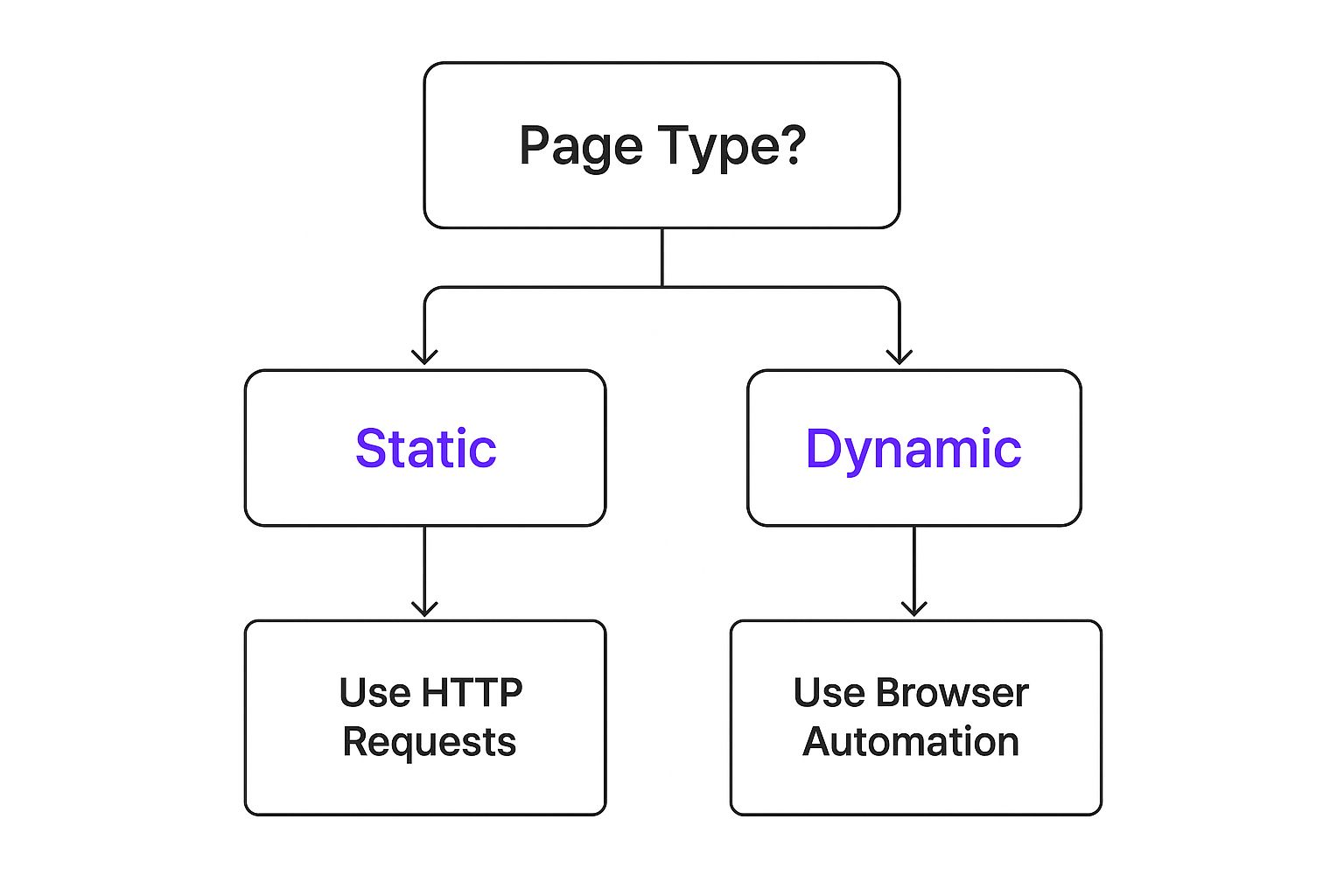
The takeaway here is that static and dynamic sites require completely different approaches. For those dynamic pages, you'll need something that can actually run the JavaScript, just like a real browser. This means turning to tools like [Selenium](https://www.selenium.dev/) or [Playwright](https://playwright.dev/), or using a more sophisticated no-code tool built for this exact purpose.
> Another classic problem? Website layouts change. You might build a scraper that perfectly targets a price inside a `` tag with a specific class, only to have it break the moment a developer decides to rename that class. **Building robust scrapers means creating flexible selectors** that don't depend on flimsy details. This adaptability is the secret to successful, long-term text extraction.
Keeping these legal and technical realities in mind will help you build much more resilient and effective workflows from the start.
* * *
Ready to skip the technical hurdles and extract text from any website instantly? **WhisperChat.ai** trains an AI assistant on your web content, PDFs, or other documents. The result is a custom chatbot ready to answer your customer's questions **24/7**. You can [get started for free at WhisperChat.ai](https://www.whisperchat.ai/).
## Create your free AI support chatbot
Train WhisperChat on your website content and start answering repetitive customer questions in minutes.
[Start Free](https://www.whisperchat.ai/auth/signup)
## Related Articles
- [How to Train ChatGPT on Your Own Data](https://www.whisperchat.ai/blog/how-to-train-chatgpt-on-your-own-data)
- [Build a Smarter Chatbot Knowledge Base](https://www.whisperchat.ai/blog/chatbot-knowledge-base)
- [Your Guide to Training a Chatbot That Works](https://www.whisperchat.ai/blog/training-a-chatbot)
- [8 Data Integration Best Practices for 2025](https://www.whisperchat.ai/blog/data-integration-best-practices)